
Add or Delete a Line
You may need to manually adjust line items if a charge wasn't extracted, if items need to be "un-grouped," or if you are switching from a summary to a detailed invoice view.
- To Add: Scroll to the DETAILED INVOICE section and click the green [+] button.
- To Delete: Click the trashcan icon next to the specific line.
Modify Item Details
Item Number
You can update the item number, but proceed with caution. Changing the number may affect reporting or create duplicate items.
Account (GL Mapping) for QuickBooks Online and Restaurant365
Depending on your needs, you can categorize an item for just this invoice or for all future orders.
- New Items: If an item is new and we did the mapping for you, a yellow exclamation icon will appear. To "approve" the item, select a GL account or sync the document. This mapping will remain intact for all future documents.

- One Time Change: If you change the GL account directly on the document page, it will ONLY affect this specific invoice.
- Permanent Change (Global Mapping): To change the mapping of for all future invoices, use the Global Mapping page.
Example: You can tell clickBACON AI to always map "Catering Supplies" to "General Supplies"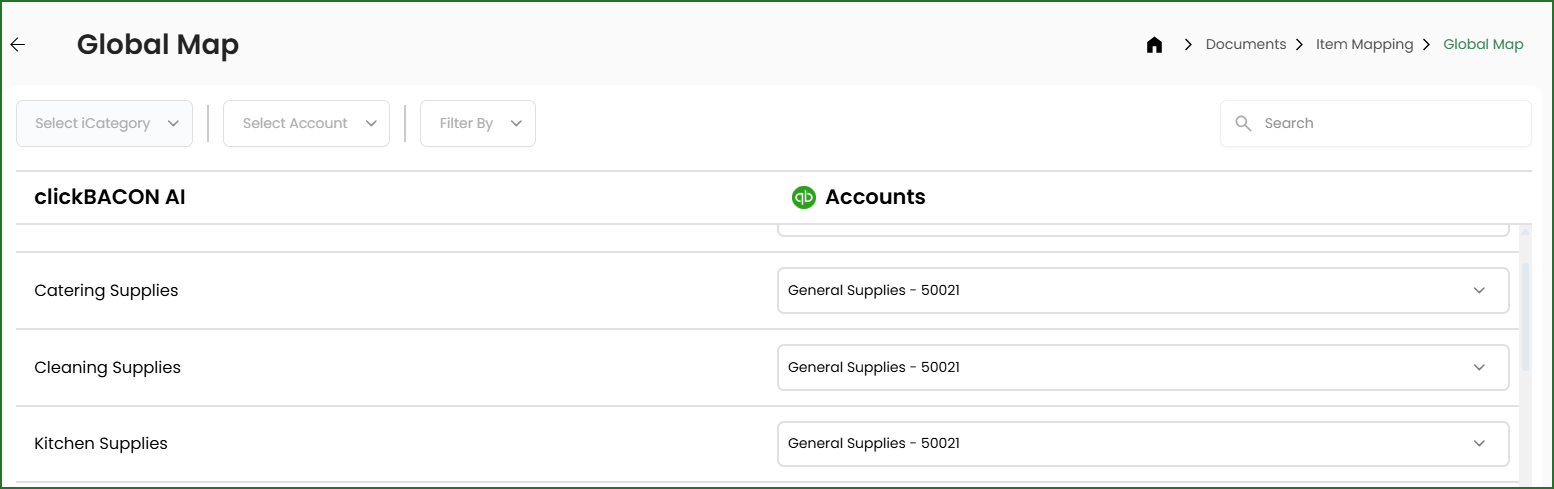
Description
Updating the description will also change it for all future invoices that contain the same item code.
Quantity, Rate, and Amount
The following fields are linked together.
Changing Quantity updates the Amount.
Changing the Rate updates the Amount.
Changing the Amount updates the Rate.