
Each vendor must be assigned a type that controls how your invoice data is sent to R365.
You can set a default type for all vendors under the GEAR ICON > SETTINGS> DOCUMENTS, then scroll to VENDOR DEFAULT PREFERENCE.
The type can also be set or changed on an individual vendor basis.
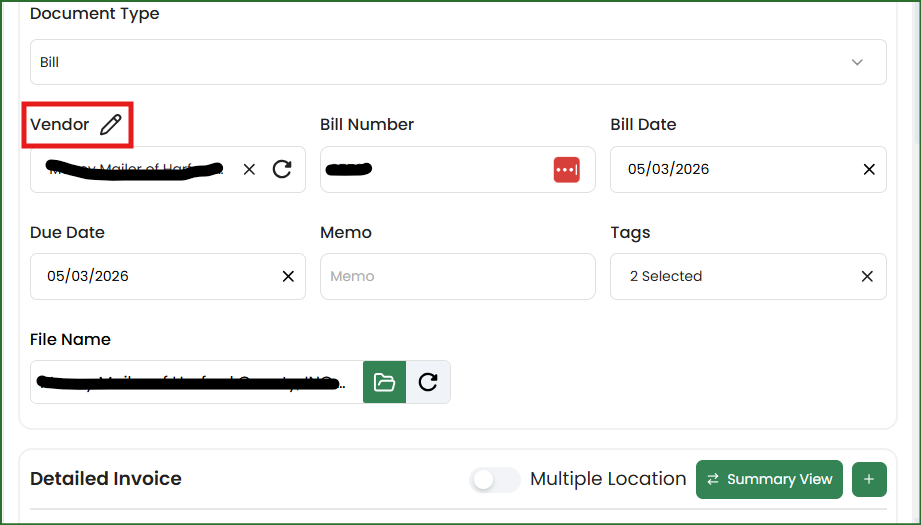
You can change the type on the fly from within a document by clicking on the pencil icon. Scroll down to VENDOR TYPE and click save.
Or from your Vendors List. Click on the GEAR ICON > LIST > VENDORS. Click the pencil next to the vendor, scroll down to VENDOR TYPE and click Update.
WHAT THE DIFFERENT VENDOR TYPES MEAN
Item
clickBACON sends the full line item details to R365. The GL account is not included because R365 handles that mapping on its end.
GL
clickBACON will display all line items on the invoice and requires you to map a GL account to each one. However, the individual line items are not sent to R365. Instead, clickBACON totals everything by GL account and sends those category totals to R365.
Summary
No line items are sent. clickBACON sends only the invoice total along with the GL account you assign to it.
Related Articles