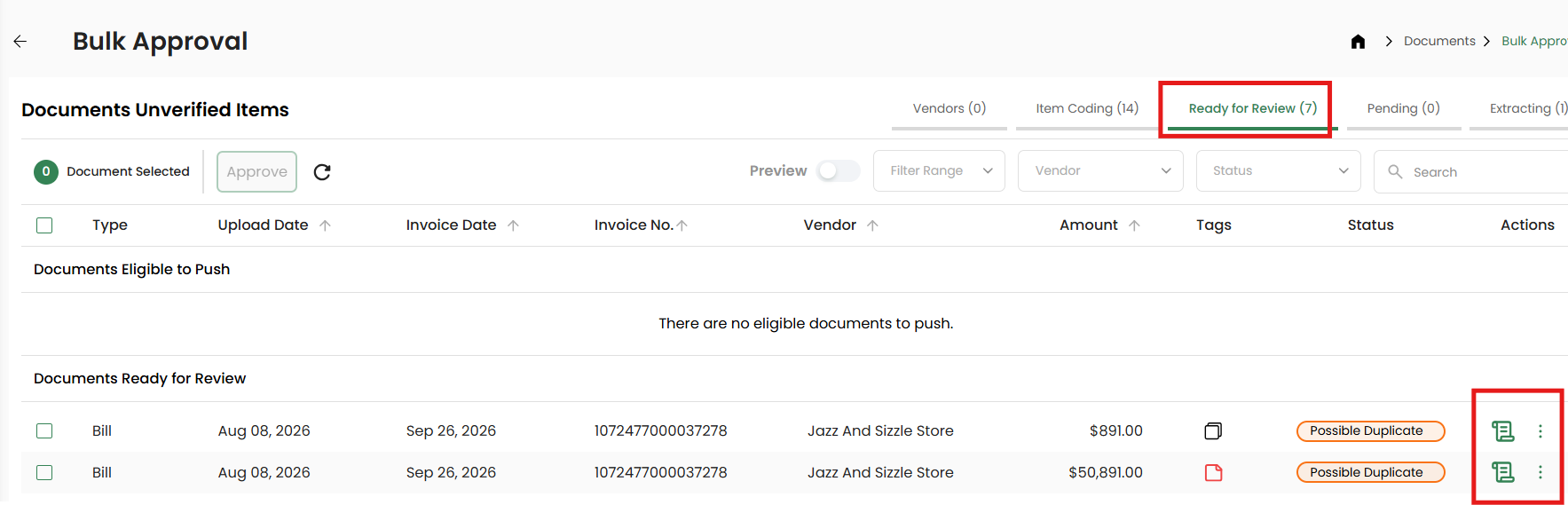
clickBACON automatically flags an invoice as a potential duplicate when an existing document in the same restaurant location matches all four of the following:
- Restaurant name
- Invoice number
- Vendor
- Amount
If you upload the document directly in the app, the system will put the document in your Ready For Review folder and flag it as a possible duplicate as soon as the OCR process is finished.
If the document is emailed in, no immediate notification is sent. You will only see the flag when you review it in the app.
Where you'll see the duplicate flag:
Ready for Review:
Click on the icon next to the status tag to review the possible duplicate files.

Here you can review the other files to confirm if the new document is a duplicate.
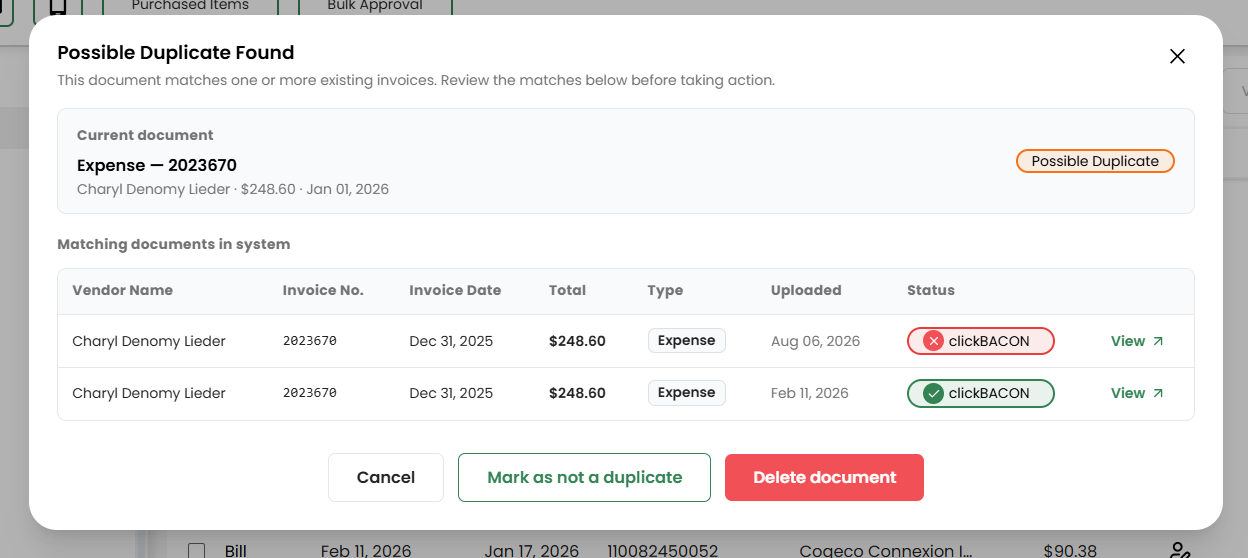
The delete button will delete your current document. Clicking DELETE DOCUMENT will delete the current document.
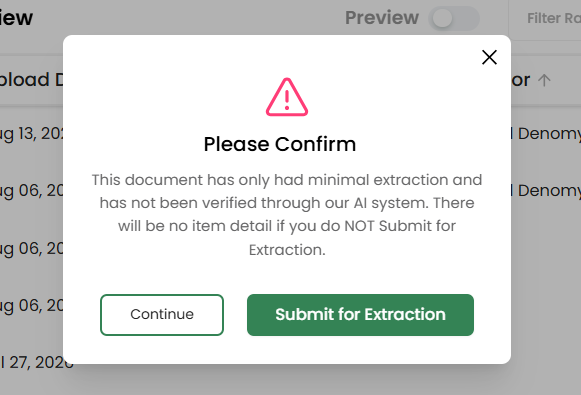
To avoid any delays in processing documents, if you are on our clickBACON Ai plan we will not extract or verify any line items on a duplicate document. If you click MARK AS NOT A DUPLICATE, you will have the option to resubmit the document for extraction.
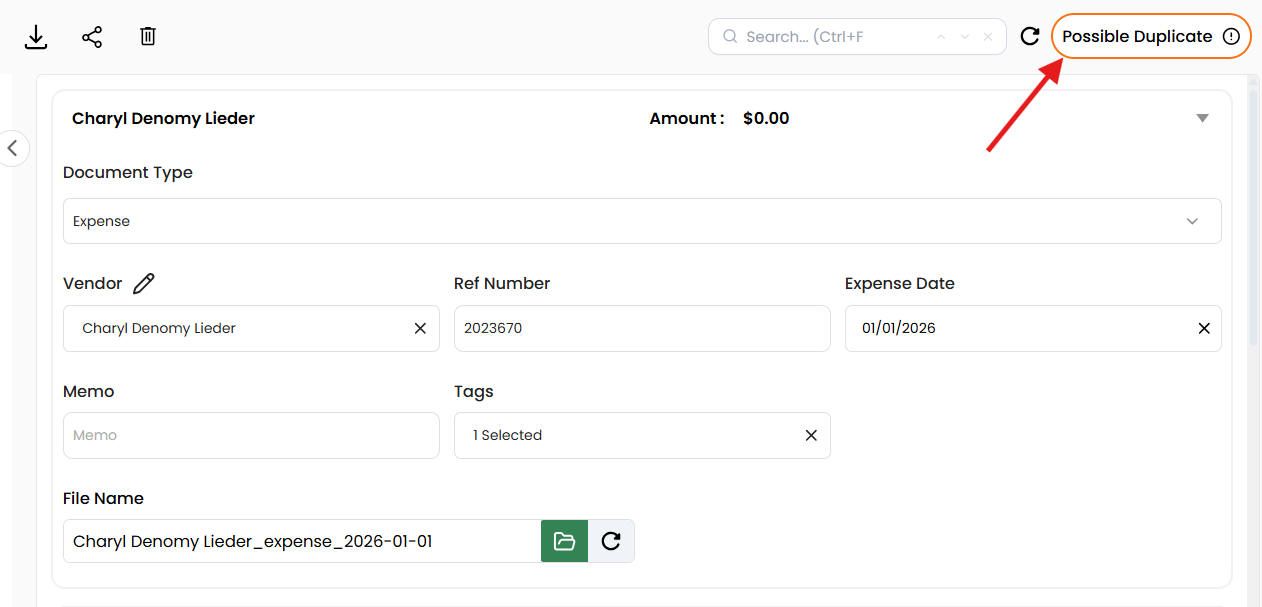
On The Document:
You will see a Possible Duplicate status when you open the document. Clicking on the ! icon will bring you through the same process shown above.
Bulk Approval Screen:
On this screen, you'll find any possible duplicates listed under the Ready for Review tab. You can click on the document icon or the 3 dots > View. From inside the document, follow the steps above to review and manage the possible duplicate document.